Download & Installation
Follow these steps to set up Nocturne Bot correctly. Please read carefully to avoid common security issues.
Step 1 Create a Dedicated Folder
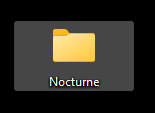
Right-click on your Desktop or any preferred location and create a New Folder. Name it "Nocturne" or something similar. This is where your bot files will live.
Step 2 Configure Windows Defender
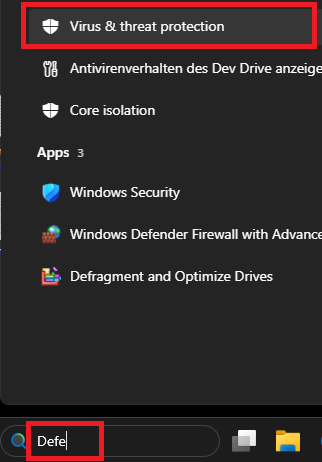
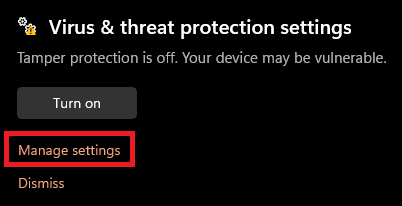
Search for "Defender" in your Windows search bar and open "Virus & Threat Protection". Go to "Manage settings" and follow the steps below.
Step 2.1: Open Settings
Step 2.2: Manage Settings
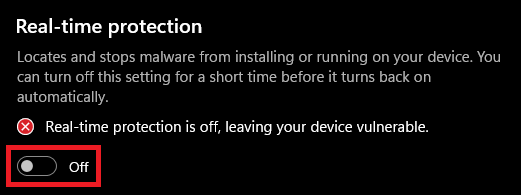
Step 2.3: Disable Real-time Protection
Switch "Real-time protection" to OFF. This allows the bot to interact with the game without being blocked.
Step 3 Add Windows Defender Exclusions
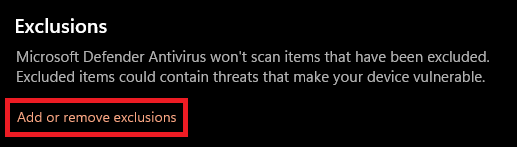
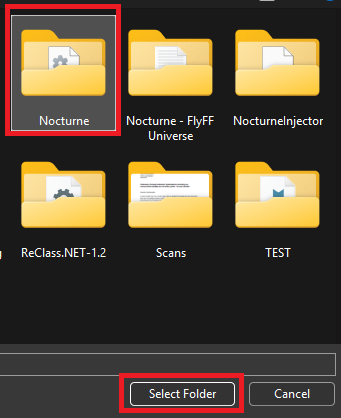
If you prefer keeping protection on, you can tell Windows to ignore the specific folder you created in Step 1.
Step 3.1: Add or remove exclusions
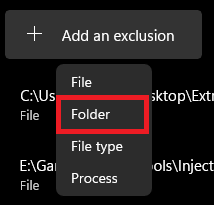
Step 3.2: Select Folder
Step 3.3: Choose Folder Path
Note: If you use 3rd party antivirus software (like Avast or Bitdefender), you must apply similar settings there!
Step 4 Download the Bot
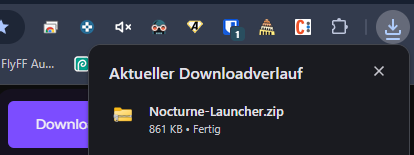
Download the Launcher from the link at the top of this page. You will receive a .zip file containing all necessary components.
Step 4.1: Start Download
Step 4.2: Locate Zip File
Step 5 Extracting Files
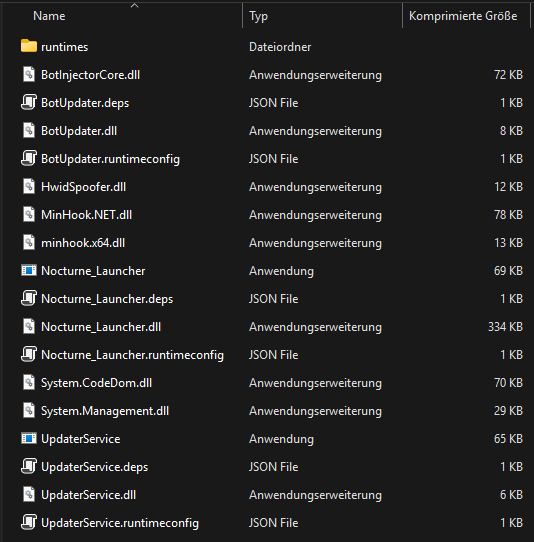
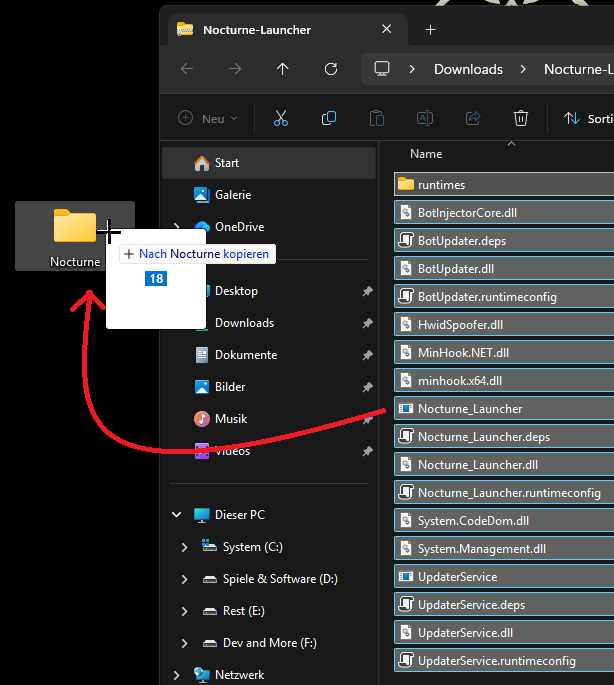
Open the .zip file, select all files (CTRL + A), and drag them into your Nocturne folder.
Step 5.1: Open Zip Contents
Step 5.2: Extract to Folder
Step 6 Windows Defender Warning
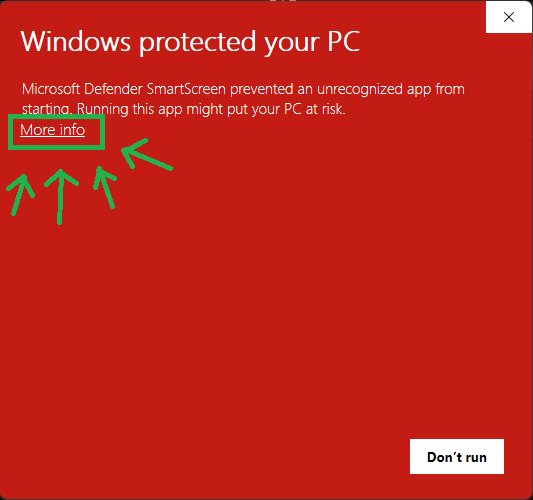
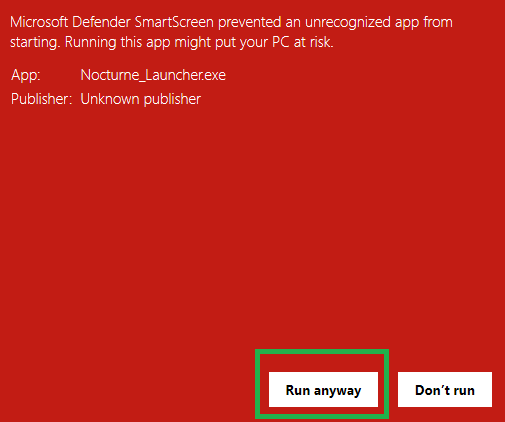
Windows SmartScreen might show a warning. This is a common false positive for injector-based applications.
Step 6.1: Click "More info"
Step 6.2: Run anyway
Step 7 Launch & Login
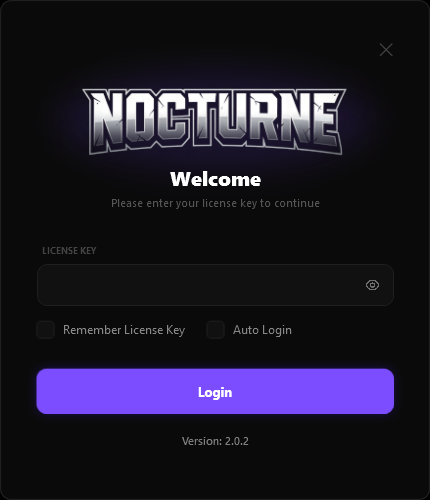
Double-click "Nocturne_Launcher.exe" and confirm the Administrator prompt.
Step 7.1: Launch Executable

Step 7.2: Login Screen
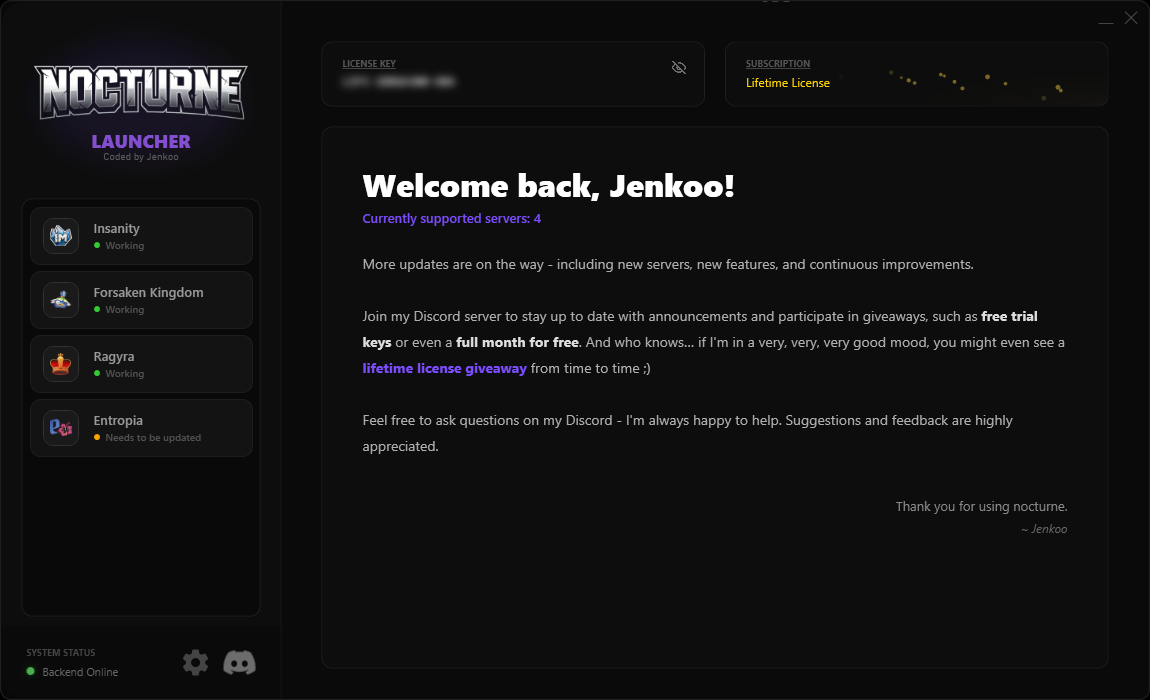
Step 7.3: Nocturne Dashboard